
Your packaging is often the first physical touchpoint a customer has with your brand — and a well-designed mailer box turns that moment into a memorable experience. Whether you’re launching a subscription box, shipping handmade goods, or refreshing your e-commerce brand, designing a custom mailer box from scratch doesn’t have to feel overwhelming.
This guide walks you through every step: picking the right material, setting up your artwork files correctly, choosing finishes, and making the most of every panel — inside and out. Follow these steps and you’ll go from a blank dieline to a box that earns its place on someone’s Instagram feed.
Quick Answer
To design a custom mailer box, start by choosing your box size and material, then download the manufacturer’s dieline template. Create your artwork in CMYK at 300 DPI with a 0.125-inch bleed in a vector-friendly app like Adobe Illustrator, apply your brand’s logo, colors, and typography across all panels, select a finish (matte, gloss, or soft-touch), and export as a print-ready PDF or AI file before submitting to your printer.
Step-by-Step: Designing Your Custom Mailer Box
Step 1 — Define your brand foundation. Before opening any design software, gather your brand style guide: exact logo files (vector format), your primary and secondary color hex or Pantone values, approved typefaces, and any recurring graphic elements like patterns or icons. Every panel of the box should feel like it belongs to the same visual world.
Step 2 — Choose your size and material. Pick a box size that fits your product snugly; too much empty space lets the product shift and can cause damage. For material, E-Flute corrugated cardboard is the most common choice — it’s lightweight yet sturdy, and its tight ribbing keeps the box looking sleek. White board is the better canvas for vibrant, full-color designs, while kraft (brown) board suits simple, one- or two-color logos and gives an earthy, artisanal feel.
Step 3 — Download and set up the dieline. Every packaging supplier provides a dieline — a flat template (usually an AI or PDF file) that shows every panel, fold line, and cut line of your box. Open the dieline in Adobe Illustrator or a compatible tool and lock that layer. This is your blueprint; never design without it, or your artwork may land on a fold or get trimmed away.
Step 4 — Set up your artwork file correctly. Work in CMYK color mode from the start — screens display RGB, but commercial presses print CMYK, and converting at the last minute can shift your colors unexpectedly. Set your resolution to at least 300 DPI for any raster images. Add a bleed of 0.125 inches (3 mm) beyond every trim edge so that backgrounds and patterns reach fully to the cut line, and keep all critical text and logos at least 0.125 to 0.25 inches inside the trim edge as a safe zone. Convert all text to outlines before exporting so fonts render correctly even if the printer doesn’t have them installed.
Step 5 — Design each panel with purpose. The exterior lid or front panel is prime real estate: lead with your logo and a strong brand color. The exterior side and bottom panels can carry brand patterns, taglines, or product-category information. Don’t leave interior panels blank — the inside of the lid is perfect for a social media handle, a thank-you message, a discount QR code, or a short brand story. Interior side flaps can reinforce your brand mission or direct customers to your website. This layered storytelling rewards the customer as they open the box.
Step 6 — Select your finish. Matte lamination gives a clean, modern look that resists fingerprints — popular with lifestyle and beauty brands. Gloss lamination makes colors pop with a shiny, vivid surface and is generally more affordable. Soft-touch coating adds a velvety, suede-like texture that signals premium quality and pairs beautifully with spot UV, which applies a high-gloss layer to specific elements (like your logo) for a striking contrast against a matte background. Foil stamping, embossing, and debossing are additional premium options for brands that want a tactile, luxury feel.
Step 7 — Export and submit. Export your final file as a press-ready PDF (or AI/EPS if your printer requires it), with crop marks and bleed included in your export settings. Double-check that all images are embedded, not linked, to avoid missing-asset errors at the printer.
Making the Most of Your Box: Unboxing Experience and Interior Design
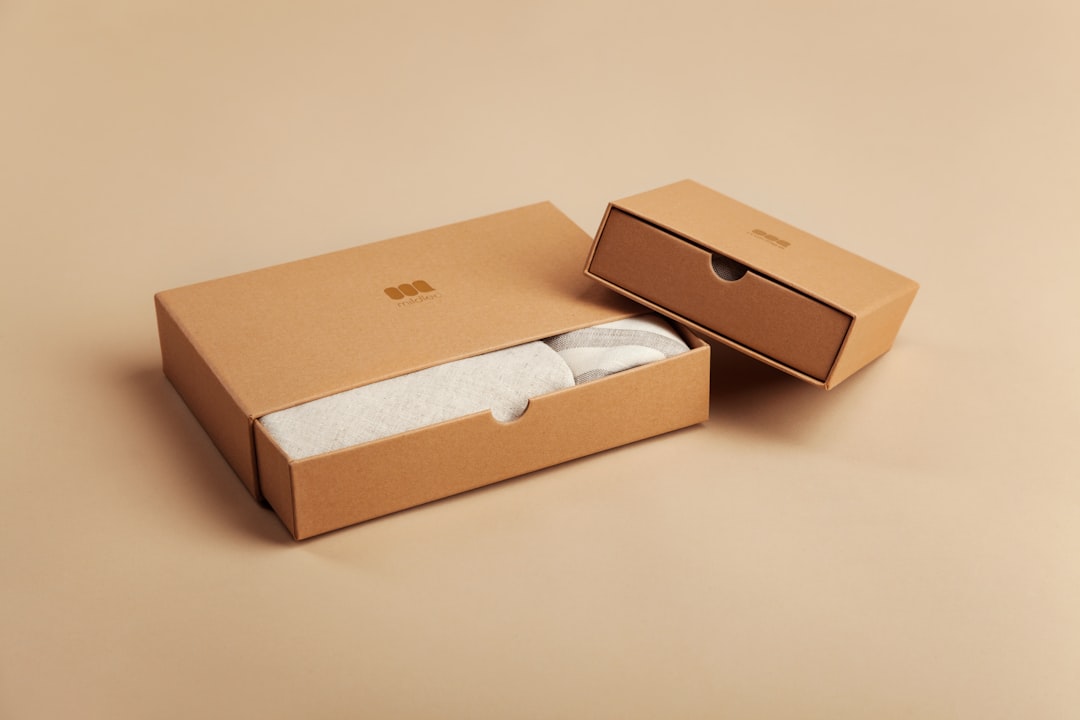
The unboxing moment is where custom packaging earns its keep. A box that looks great on the outside but reveals a plain brown interior misses a huge opportunity. Consider printing a hidden message, a branded pattern, or a vibrant color-block on the interior. Even a simple line of copy — ‘Made with care. Shipped with love.’ — creates a human moment that a plain box never could.
Layer the experience further with matching interior materials: custom tissue paper in a brand color, a hand-signed or printed thank-you card, a sticker, or a small insert that tells your brand’s story. These additions don’t just delight customers — they give people something worth photographing and sharing, extending your brand’s reach organically.
Think through the opening sequence before finalizing your design. What does the customer see first when they lift the lid? That first reveal should feel intentional. Place your most impactful design element — a bold color, a logo lockup, a message — exactly where eyes naturally land when the flap opens.
Common Mistakes to Avoid
Designing in RGB instead of CMYK is the most frequent technical error. Your monitor looks great, but when the file hits a commercial press, those rich blues and vibrant oranges can shift noticeably. Always start in CMYK. Related: if you’re using brand colors, test a physical proof before approving a full run — screens and paper stock never match perfectly.
Ignoring the dieline is equally costly. Designing a beautiful graphic and then dropping it onto the dieline template as an afterthought often means key elements sit on fold lines or get trimmed away. Always design with the dieline locked as a reference layer from the very beginning.
Skipping a physical prototype before a large print run is a risk that’s easy to avoid. Order a sample or a short proof run — even ten boxes — to check colors, structure, and how the finished print reads in real light. What looks sharp on screen can appear flat or muddy on certain board stocks without adjustment.
Overcrowding every panel is a common branding mistake. White space is not wasted space — it gives the eye somewhere to rest and makes your logo and key messages stand out more clearly. Resist the urge to fill every inch, especially on smaller boxes where text can become illegible at shipping scale.
Explore more: Packaging Design Guides.
custom mailer box design FAQs
What file format should I use when submitting a custom mailer box design?
Most packaging printers accept .AI (Adobe Illustrator), .EPS, or press-ready .PDF files. Ensure your file is in CMYK color mode, at 300 DPI or higher for any raster elements, with a 0.125-inch bleed and all fonts converted to outlines. Embed all linked images before exporting.
Do I need a dieline to design a custom mailer box?
Yes — a dieline is essential. It’s the flat template showing every panel, fold line, and cut line of your box. Designing without one risks placing graphics on fold lines or outside the printable area. Your packaging supplier will provide a dieline specific to your chosen box size; always design with it locked as a reference layer.
What’s the difference between matte and soft-touch finish on a mailer box?
Matte lamination gives a smooth, non-reflective surface that resists fingerprints and looks clean and modern. Soft-touch coating goes a step further, adding a velvety, suede-like texture that feels premium in the hand. Soft-touch is often combined with spot UV — a high-gloss coating on specific elements like a logo — to create a tactile contrast that communicates luxury.
Source Smarter With Packaura Direct
Find packaging suppliers, surplus inventory, and certification — all on Packaura Direct. Try Packaura Direct.
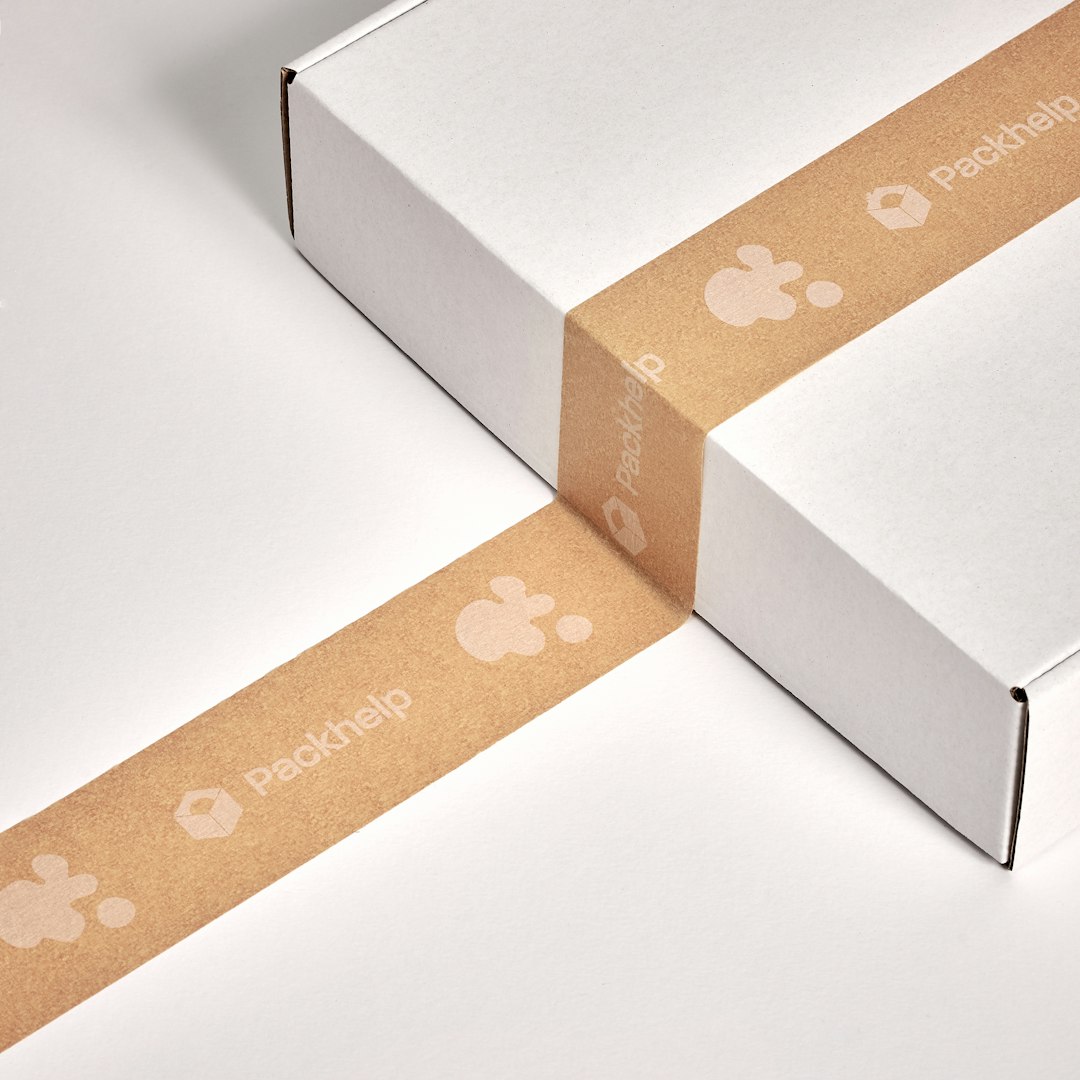
Photo by Packhelp on Unsplash.